
Count Clover inventory with your phone
Scan barcodes, count offline and choose which linked locations receive completed counts. Connect Clover through the Business web cabinet.
Included in Business
Count inventory with your phone
Clover tracks item stock and availability in the merchant dashboard.
Check the merchant you authorize and use a matched item with stock tracking turned on.
What Retail Scan & Stock adds
Count in the app with a phone camera, even in areas without Wi-Fi. Sync when you are back online. Export count records to Excel or CSV.
Imported sales help you check shrinkage and dead stock. Business also suggests reorder quantities. Send purchase orders to suppliers through WhatsApp or your email app.
Use your POS for checkout, payments and running stock. Retail Scan & Stock records the latest physical count.
A stock count from our Clover test
Retail Scan & Stock counted 12 packs of spaghetti. The test merchant showed 12 in Clover after the update.
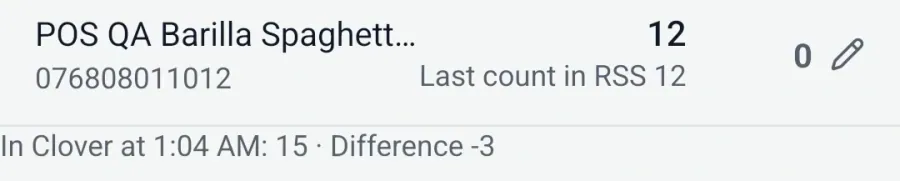
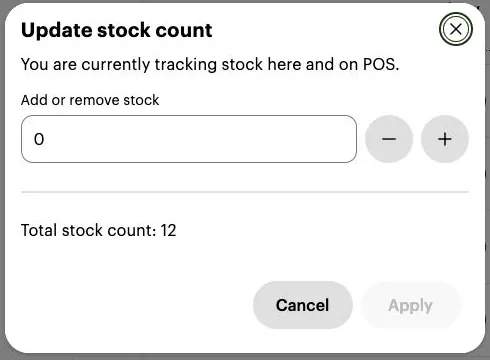
These are cropped screenshots from test accounts. The interface in the screenshots is in English.
How to connect
- Sign in to the web cabinet as the Business account owner.
- Open POS integrations and approve the connection in your POS.
- Confirm the merchant and the Retail Scan & Stock account.
- Link each location you want to use to the matching store.
- Start with sales import. Turn on sending only at locations that should receive counts.
Common questions
- Who can set up a connection?
- The Business account owner sets it up in the web cabinet.
- Can I count offline?
- Yes. Count with local app data and reconnect to sync or send results to your POS.
- Can I import sales without changing stock in my POS?
- Yes. Leave sending counts off for that location.
- Can I disconnect later?
- Yes. The owner can disconnect in the web cabinet. Sync and sending counts stop. Nothing is deleted in your POS.
- What if I need to reconnect Clover?
- If the cabinet asks you to remove the app in the Clover merchant dashboard, do that before reconnecting.
Retail Scan & Stock works with these systems. Mention of third-party systems does not imply partnership or endorsement.

Get Retail Scan & Stock
Scan barcodes, count stock and make purchase orders on your phone. The app is free on iPhone, iPad and Android.
Download for mobile
Free for up to 1,000 products on one device.
Install it on a phone or tablet. Counting and purchase orders work offline.
Available on Apple App Store and Google Play.
By using the app you agree to our Terms and Privacy Policy.