
How to verify Clover item quantity after a stock count
Open the Riverside merchant in Clover Dashboard and find the tracked item OIL-500. The Riverside count is six 500 mL bottles. Match the barcode, merchant and tracking setting before sending, then verify the six against that same item. Connect on Business · Set up the connection



Pick the merchant before picking up the scanner
Suppose the owner gets a photo with “olive oil: 6” in a text. The label on the litre bottle is almost identical. Now there are two decisions to make from one line of handwriting. In RSS, scan the 500 mL olive oil, SKU OIL-500, and make sure the item maps to its tracked Clover record. While you’re setting up the connection, match Riverside to Riverside. That gives the eligible count a destination without asking the owner to interpret the photo.
If your staff already check and adjust counts in Clover’s Items screen, they can keep doing that. The reason to try the connection is a split job: one person counts on the floor and the other re-enters the figures at a desk, sometimes under a different merchant login.
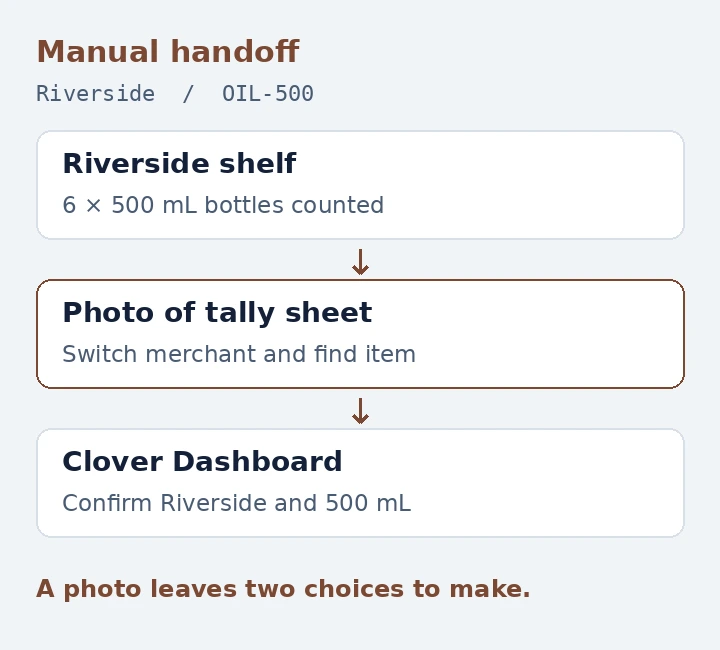
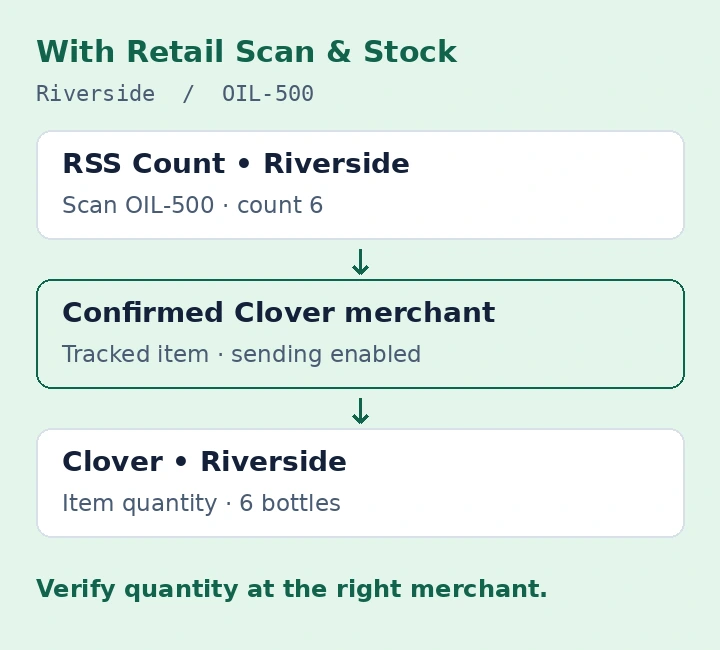
Connect only the Riverside merchant
Confirm that Track stock is on in Clover and that OIL-500 has an identifiable barcode or SKU in both catalogs. Use the owner of the RSS Business account in the web cabinet. Approve access with the required rights for the Riverside Clover merchant.
- In POS integrations, choose Connect Clover. Check which Clover merchant is signed in before approving access. Return to RSS in the same browser.
- Review the merchant shown at Confirm POS connection. Under RSS store for Riverside, choose Riverside. If the name or account looks wrong, start again before confirming.
- Turn on Send completed counts to Riverside only if you intend to let eligible counts replace stock at this shop. Choose Confirm connection. To change an existing link, select Enable and Save link. New store links start with sending off.
Count six bottles, then check one Clover item
On the phone, start a New Count session for Riverside, scan the 500 mL bottle and check the matching item name or SKU. Count the shelf and any bottles in the stockroom. Record six and select Complete Session. Let the phone sync.

After sending, open Items > Item list in the Clover Dashboard for Riverside. Open the 500 mL item and review its quantity and tracking settings. Expect six in a quiet test with no movement after the count. If the shop made a sale in the meantime, compare the timing before treating a different quantity as a problem. Avoid applying an identical manual adjustment while a count update is pending.
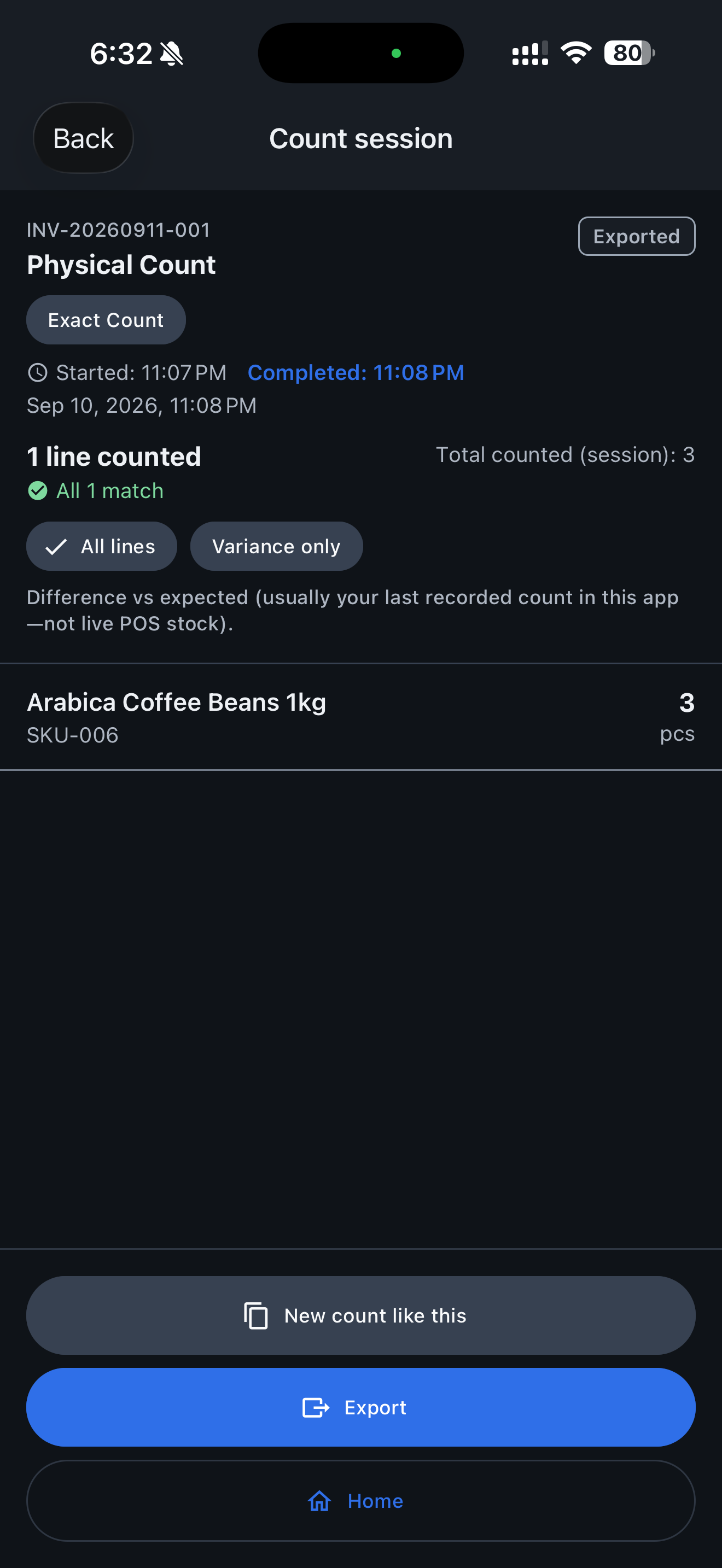
To check the sales side, look in RSS Sales for the Clover document for Riverside and the relevant reporting period. Match the units on OIL-500 against a qualifying Clover sale for that merchant. The imported document holds quantities. Keep using Clover to look up the transaction and payment details, and use the RSS completed session for the number counted on the shelf.
What if the item quantity did not change?
If the result is missing, first check whether you are looking at the Riverside merchant and the right item record. Compare the barcode with the physical bottle, particularly if the 1 L bottle has a similar label. Then check Track stock and the link’s sending setting.
If the cabinet shows Reconnect required, restore the connection as the Business owner before trying again. If the cabinet asks you to remove the app in Clover’s merchant dashboard, follow that direction before reconnecting. If the connection is active and the count is in Count updates to review, read the reason and resolve it there. Send to POS queues the count, while Don’t send skips that POS update.
Try this with whoever normally gets the count texts. Give them the product and store, have a colleague count the bottles, then ask them to check six in the Riverside Clover Dashboard after sending. The work you’re looking to remove is the second entry of the quantity.
Test with one item at one store
In Clover, verify the merchant and open the tracked 500 mL item. The expected result is 6 bottles under Riverside once the update is sent.
- Before counting, record the store, the SKU or barcode and the quantity shown in the POS. Save the time you checked it so you can account for later sales, returns or transfers.
- Finish the count in Retail Scan & Stock and wait for it to sync. If you enabled count sending, check the update status in the cabinet before comparing the quantity on the same item and at the same location in the POS.
- If the numbers differ, check the store link, item match and any pending review. Then look for movements since the count. If the discrepancy is still unexplained, count the item again before sending another update.