

Before you start
Use a computer with a browser, a Business account signed in as the owner, and admin rights in the POS to approve the connection.
Sending completed counts to Loyverse requires its paid Advanced Inventory add-on. You can import sales without the add-on.
Connect and link a store
- In “POS integrations”, choose “Connect Loyverse”. Sign in to the POS, approve access, and continue in the same browser.
- Back in the cabinet, check the merchant and account shown under “Confirm POS connection”. Press “Confirm connection” after reviewing the links and settings. “Connect {merchant} from Loyverse to {account}.”
- Under “RSS store for {location}”, choose the matching active RSS store for each location you want to use. Leave unused locations unlinked.
- Use “Send completed counts to {location}” to select which locations receive completed counts. It is off for new links. When editing an existing connection, choose “Enable” if you want to send, then “Save link”.
Check the first import and count
Open “Sales” in the cabinet. Linking a location schedules a first import. If nothing appears yet, check the date and store and allow the next hourly sync.
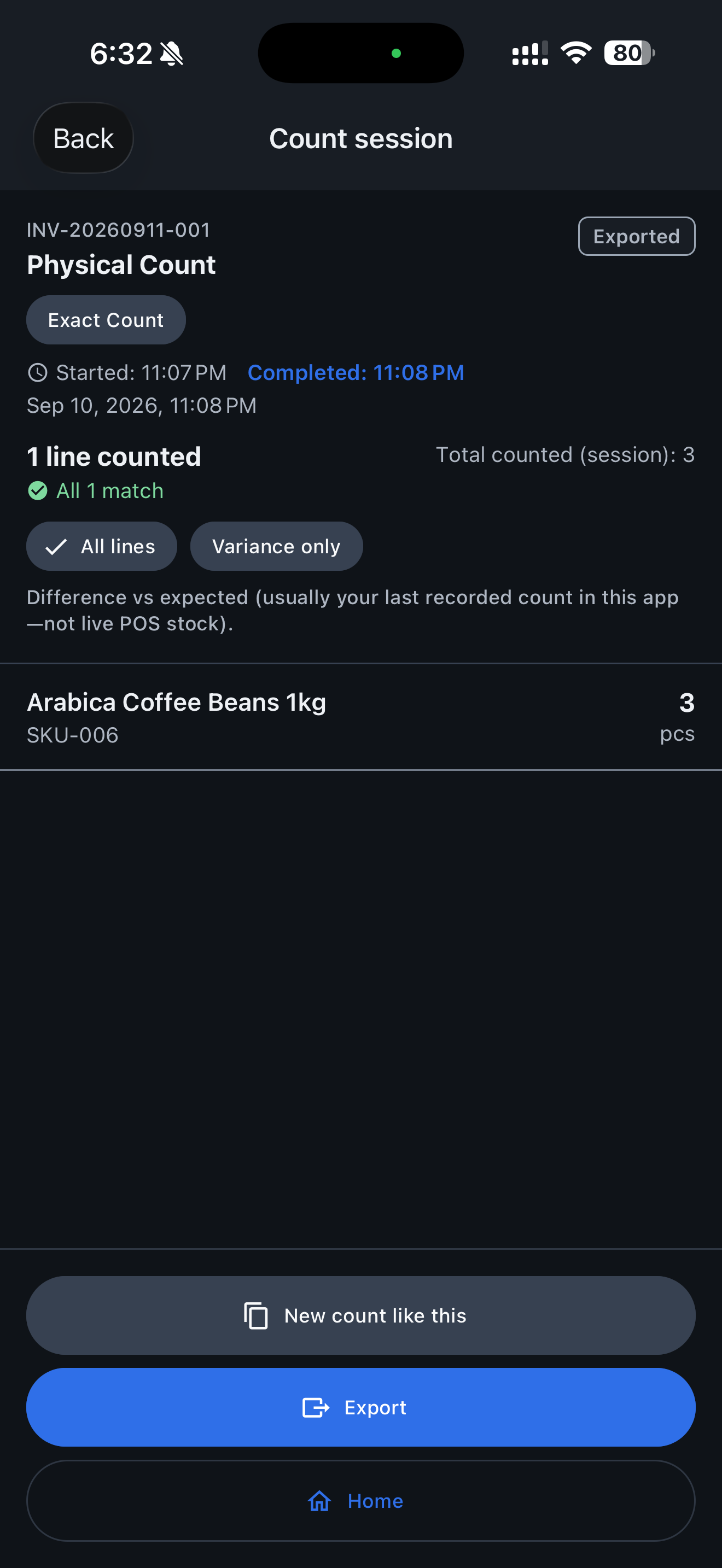
Complete a small count for a matched, stock-tracked item in the linked store. If you enabled sending, let the app sync, then verify the update and quantity at the matching POS location.
Without the integration
Loyverse receipts
5 sold · 2 returned
Manual tally
Add quantities by product
Physical stock check
21 expected · 19 counted
Rebuild the sales tally each time.
With the integration
Loyverse receipts
5 sold · 2 returned
Sales import to RSS
Linked café · matched product
RSS Sales + Count
Net sold 3 · shelf count 19
Sales import leaves POS stock intact.
Troubleshooting
Standard POS confirmation expires 30 minutes after authorization. Use “Start again” or start again from “POS integrations”. If the link is incomplete, return to the browser you used to approve access.
Sending counts is turned off for this POS location. Check the location settings in Integrations.
Disconnect
Choose “Disconnect” on the provider card and confirm. Sales sync and count sending stop. Location links are kept as history and your POS data is preserved.
Test with one item at one store
In Loyverse, select one store and period. Compare 5 sold and 2 returned with the 3 net units in Retail Scan & Stock Sales. Check the physical count separately. Sending counts requires Advanced Inventory.
- Before counting, record the store, the SKU or barcode and the quantity shown in the POS. Save the time you checked it so you can account for later sales, returns or transfers.
- Finish the count in Retail Scan & Stock and wait for it to sync. If you enabled count sending, check the update status in the cabinet before comparing the quantity on the same item and at the same location in the POS.
- If the numbers differ, check the store link, item match and any pending review. Then look for movements since the count. If the discrepancy is still unexplained, count the item again before sending another update.
Retail Scan & Stock works with these systems. Mention of third-party systems does not imply partnership or endorsement.