
How to reconcile Loyverse sales with a stock count
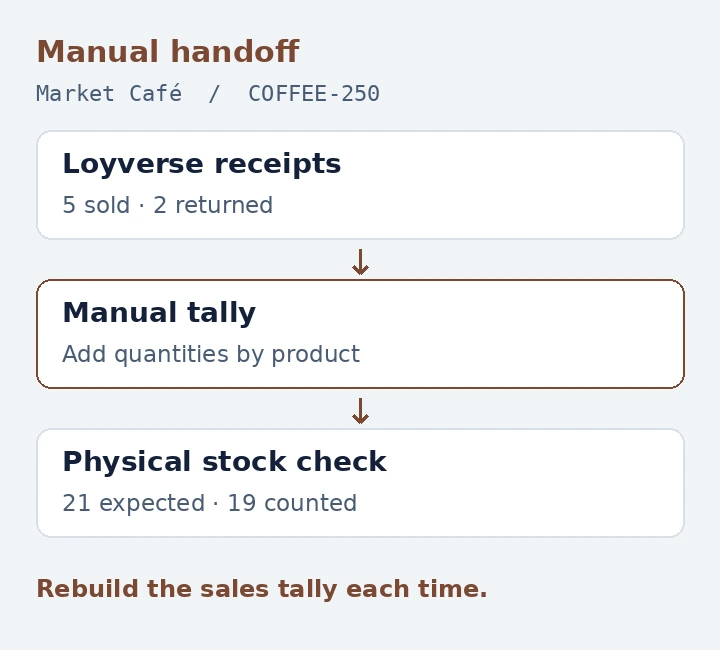
Market Café, 250 g house roast: 24 opening − 5 sold + 2 restocked returns = 21 expected. The shelf holds 19, so two bags remain unexplained. Check that both returns went back on the shelf. Business can import sales from Loyverse. Sending completed counts also requires Loyverse Advanced Inventory. Connect on Business · Set up the connection


Start with the receipts, then look at the shelf
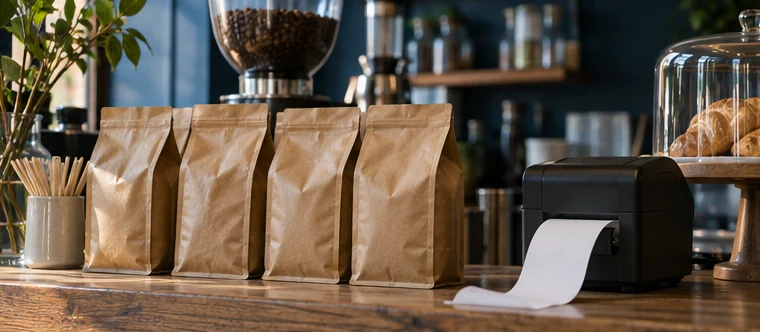
There are two sizes of house roast on the counter. Here we’re counting the 250 g bag, SKU COFFEE-250. In Loyverse Back Office, the receipts are there if you need to see an individual sale or refund. The job RSS takes off the manager’s hands is adding up those lines by product for the count period. Once Market Café is linked and the product is matched, open the store’s Sales document to find the quantities.
The 19 on the shelf is real. The 21 is an expectation, and it depends on what happened to those returns. A refund tells you about the sale. Ask the person on shift whether the bags were put back, opened or discarded. Likewise, check whether someone took a bag to the café bar or left an open case behind the counter. Settle those questions before calling the difference a loss.
Connect a store and leave count sending off to start
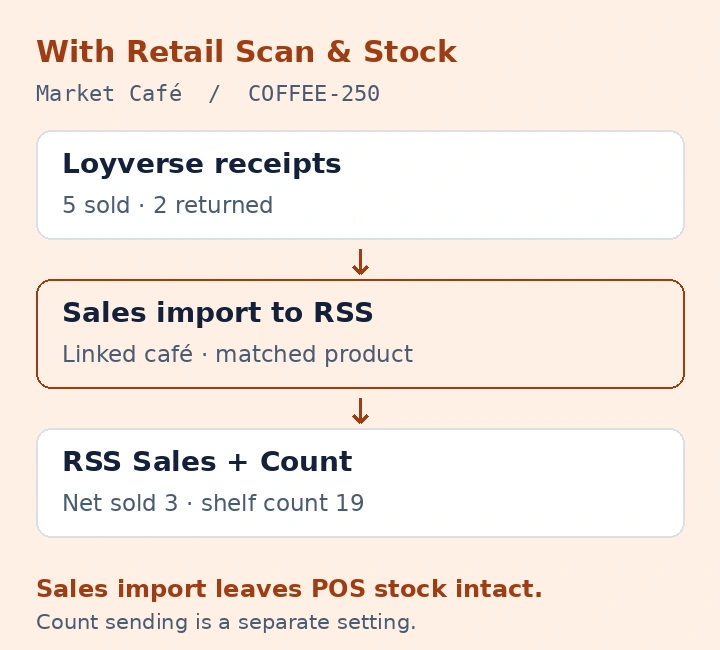
The Business account owner opens the RSS web cabinet and chooses Connect Loyverse under POS integrations. Authorize the right merchant in Loyverse and return in the same browser. On Confirm POS connection, choose the Market Café store under RSS store for Market Café, then Confirm connection. Keep Send completed counts to Market Café off for the first test.
You can import sales this way without Loyverse Advanced Inventory. If you want to send completed physical counts back to Loyverse, you need the paid Loyverse Advanced Inventory add-on as well as the RSS Business connection. The owner then turns on sending for that particular store. Loyverse also provides its own full and partial counts in Advanced Inventory. A café that already counts there can try RSS for the receipt quantities first and decide whether moving the counting step is worth it.

Run a two-document check
Find the sale. After the first import runs, open Sales in the cabinet and choose the Loyverse document for Market Café and the period in question. Check the product line. In our example it should show five under Sold, two under Returned and three under Net. RSS records units, so use Back Office for receipt totals, payments or individual transactions. Linking the store schedules an import. If the right period is still empty, give it the next scheduled run and make sure the receipts came from that store.
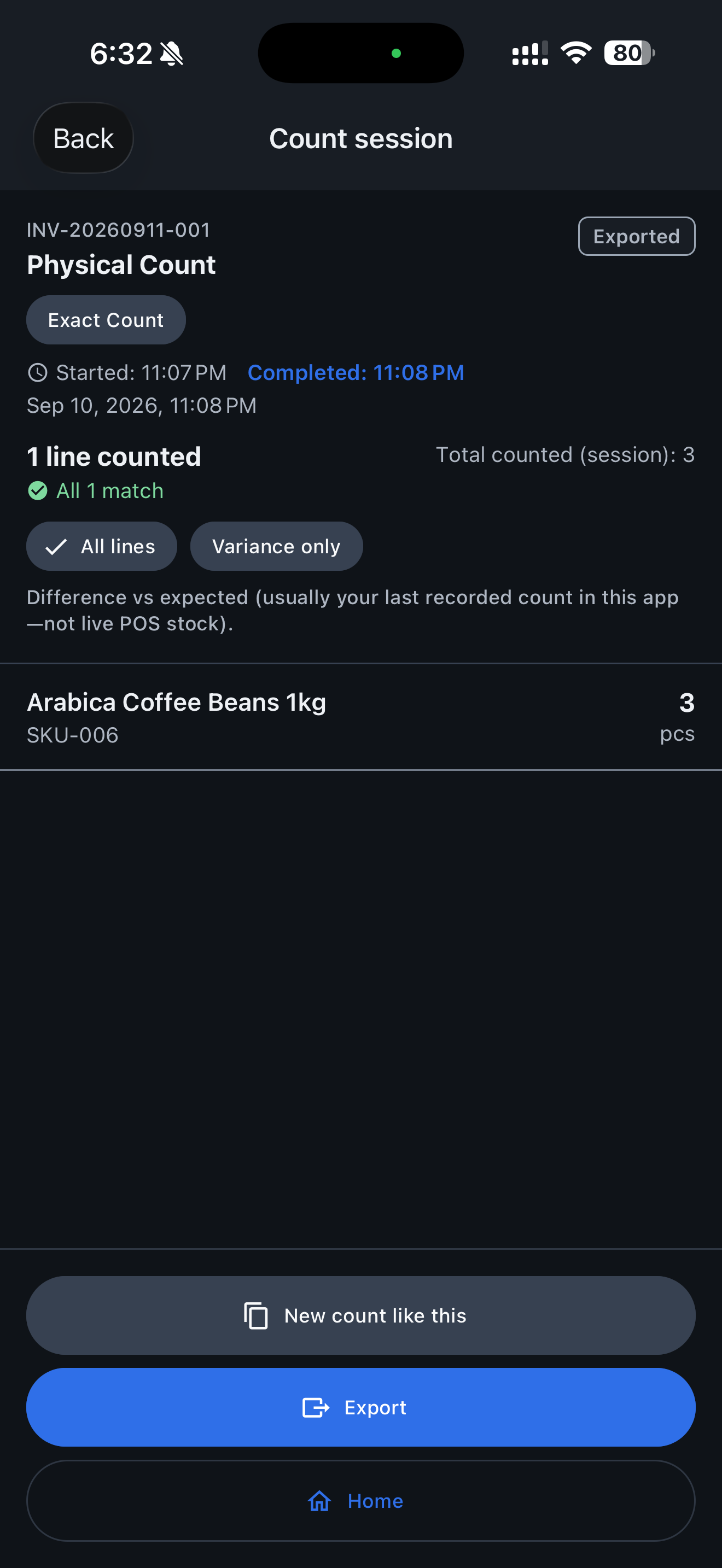
Find the count. On the phone, start New Count session under Count and select Market Café. Scan the 250 g bag, count every bag for that SKU in the stockroom and at the counter, and record 19. Select Complete Session. The store’s RSS record now shows the quantity counted. With sending off, the count stays in RSS and leaves Loyverse stock where it was.
If the Sales document has a line you cannot tie to the shelf, open Sales documents in the mobile app and check Unmatched sales. Compare the barcode or SKU, then match it to the existing 250 g product if you can establish that it is the same item. An unmatched quantity does not belong in the shrinkage calculation for that product.
If you want Loyverse stock to receive the count
Check that the add-on is active and stock tracking is on for the product. In POS integrations, find that store’s link, choose Enable under Send completed counts to Market Café and select Save link. Run a fresh count on one tracked, matched item. Once it syncs and is sent, compare that exact variant’s stock in Loyverse Back Office for Market Café. If the update is held, review it in the cabinet before making another change.
Pick one fast-selling item and use the period between two counts. At the second count, have the manager read the sold and returned quantities from RSS and open Loyverse only for the receipts they need to investigate. If that saves the weekly adding-up job, bring in the rest of the shelf.
Test with one item at one store
In Loyverse, select one store and period. Compare 5 sold and 2 returned with the 3 net units in Retail Scan & Stock Sales. Check the physical count separately. Sending counts requires Advanced Inventory.
- Before counting, record the store, the SKU or barcode and the quantity shown in the POS. Save the time you checked it so you can account for later sales, returns or transfers.
- Finish the count in Retail Scan & Stock and wait for it to sync. If you enabled count sending, check the update status in the cabinet before comparing the quantity on the same item and at the same location in the POS.
- If the numbers differ, check the store link, item match and any pending review. Then look for movements since the count. If the discrepancy is still unexplained, count the item again before sending another update.