
How to reconcile Shopify POS inventory after a store count
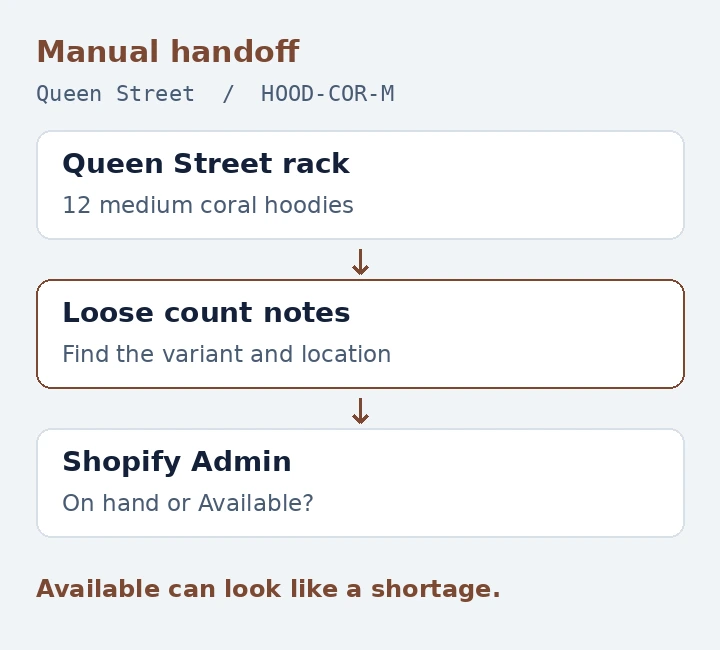
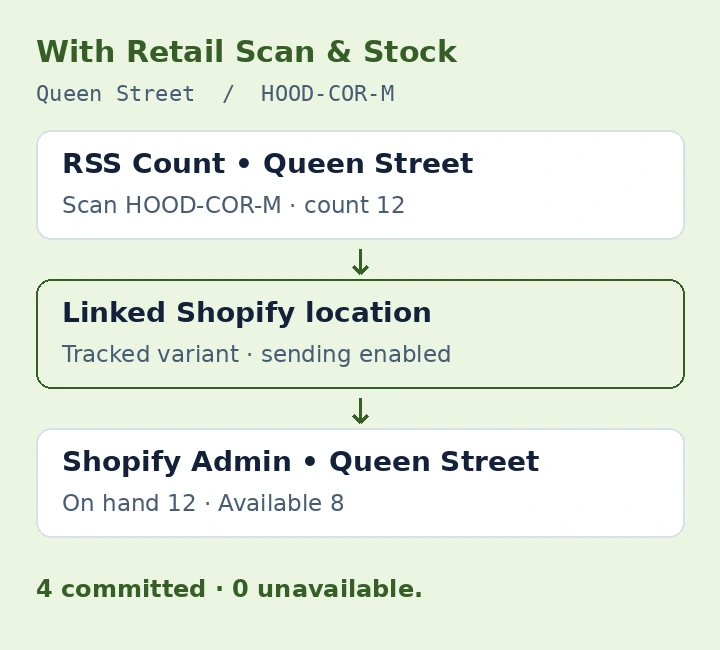
Queen Street counted 12 medium coral hoodies: 8 on the rack and 4 packed for pickup. Check On hand for HOOD-COR-M at Queen Street. In this example it starts at 15. After the eligible count reaches Shopify, 12 On hand minus 4 committed leaves 8 Available if none are unavailable. Connect on Business · Set up the connection · See the separate after-Stocky test (14 counted, 13 after a sale)

 Shopify POS
Where the other four hoodies went
Look up Coral hoodie, medium, SKU HOOD-COR-M. The pickup order accounts for four committed units. If twelve are On hand and none are unavailable, Shopify can still show eight Available. Both numbers can be right. You can check the four in the pickup bags without touching the inventory adjustment screen.
A line marked “coral hoodie, 12” on a sheet leaves out the size and the Shopify location. The connection helps with that handoff. The team scans the medium at Queen Street and the count goes to that location after sync and sending. The owner can compare the count to On hand for the variant and use the other Shopify fields to sort out what someone can still buy.
Shopify has native stock counts for eligible POS Pro locations, including barcode scanning at the assigned location and review in Shopify Admin. If your team already uses those counts and gets the records it needs, keep that workflow. Try the pair if your team wants to keep physical counts in RSS and work with quantities from in-person Shopify POS sales in the same place.
Link Queen Street as a retail location
Use the owner of the RSS Business account and the appropriate Shopify permissions. Check that Shopify tracks the medium coral variant at Queen Street and that its barcode or SKU identifies the same product in RSS.
- Open POS integrations in the web cabinet, choose Connect Shopify POS and authorize the correct shop. Continue in the same browser.
- On Confirm POS connection, check the shop and account. Under RSS store for Queen Street, select Queen Street. Leave a fulfillment location outside this trial unlinked.
- If you are ready to send counts, enable Send completed counts to Queen Street and choose Confirm connection. For an existing link, choose Enable and Save link. Leaving sending off lets you check the sales import before changing POS stock.
Check On hand after the count has been sent
On the phone, open Count and start a New Count session for Queen Street. Scan the medium coral hoodie and count the units physically present, including the four set aside at that location in this example. Enter twelve, select Complete Session and let the app sync.

After sending, open Inventory in Shopify Admin, select Queen Street, and find HOOD-COR-M. Check On hand. With no inventory movement between the count and check, it should show twelve. Available can still be eight if those four are committed and the unavailable bucket is empty. Compare the inventory states at the same location before changing anything manually.
A pickup order may help explain the committed units, but use a paid in-person Shopify POS sale at Queen Street to test the import. Find the sale’s units in the right period under Sales in the RSS cabinet. The import covers qualifying POS sales and relevant refunds at linked retail locations. Check Shopify Admin for online activity when it affects the inventory you’re reconciling.
When the numbers still disagree
If the stock update is missing, check the location filter, the medium variant’s barcode or SKU, and whether sending is enabled for Queen Street. A count may be held if inventory changed in Shopify before the stock update could be applied. Check Count updates to review for the reason. Read the comparison, check for sales or other movements and choose Send to POS when the count still holds up or Don’t send when it needs a fresh look. Verify the quantity after the queued update is sent.
Start with one variant where you already know there are units committed to pickup. If On hand agrees with the count and you can account for the gap to Available, the test is done. There is no inventory adjustment to make just because the two fields differ.
Test with one item at one store
In Shopify Admin, compare 12 counted with On hand for the linked location. If 4 are committed and none are unavailable, Available can still show 8.
- Before counting, record the store, the SKU or barcode and the quantity shown in the POS. Save the time you checked it so you can account for later sales, returns or transfers.
- Finish the count in Retail Scan & Stock and wait for it to sync. If you enabled count sending, check the update status in the cabinet before comparing the quantity on the same item and at the same location in the POS.
- If the numbers differ, check the store link, item match and any pending review. Then look for movements since the count. If the discrepancy is still unexplained, count the item again before sending another update.