
How to reconcile a Lightspeed X-Series stocktake by outlet
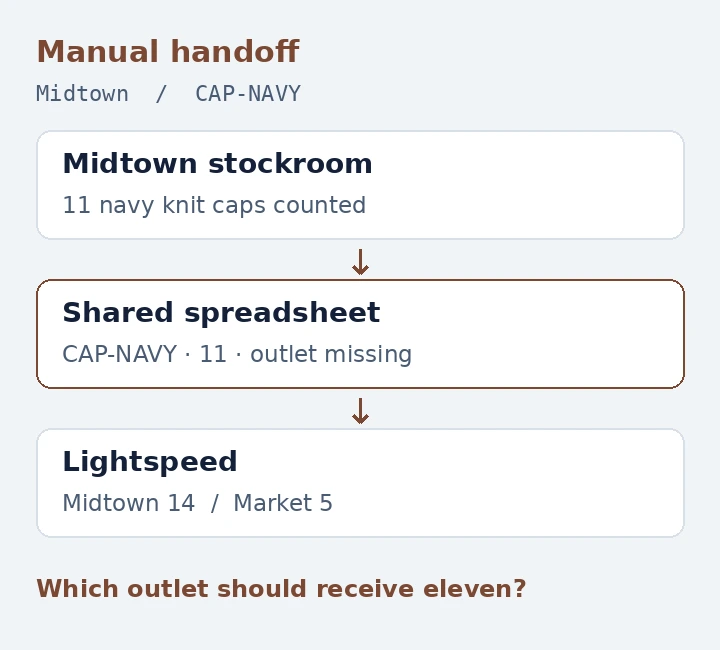
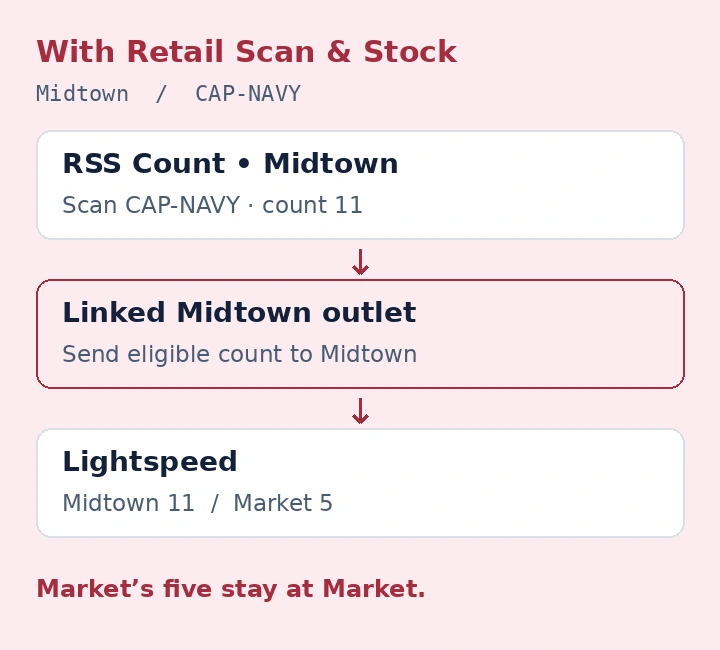
Verify CAP-NAVY at the Midtown outlet in Lightspeed Retail X-Series. The example starts at 14 in Midtown. Count the 11 caps in the overflow carton and check that the RSS store links to Midtown before sending. Market has its own balance of 5. Connect on Business · Set up the connection



Two outlets, one SKU, two stock levels
Say Lightspeed starts with fourteen at Midtown and five at Market. The person counting finds eleven of CAP-NAVY at Midtown. Market may be right already. So leave its five alone and give the Midtown manager a clear instruction: verify the cap at Midtown when the update is sent. For this check, the total across the two branches gets in the way.
Set up the link before the count. Then the clerk chooses Midtown on the phone, and the owner has Midtown on the count record and on the Lightspeed side. A similar branch name is a good reason to double-check the link up front. It’s a much quicker conversation while the clerk still has the carton open.
Lightspeed Scanner already supports mobile barcode counting by outlet and submits the native count for desktop review in Retail POS. Keep using it if that covers the whole job. RSS is worth a look if you keep count records in RSS today, count across stores that run different POS systems, or need to bring Lightspeed sales quantities into the same stock-count workflow.
Make an explicit Midtown-to-Midtown link
Use the Business account owner login in the web cabinet and confirm your provider is Lightspeed Retail X-Series. Retail R-Series uses a different connection and is outside this integration.
- In POS integrations, select Connect Lightspeed Retail X-Series. Approve access with the relevant Lightspeed permissions. Return in the same browser.
- At Confirm POS connection, check the merchant name. Under RSS store for Midtown, choose Midtown. For the first test, leave Market unlinked or leave its count sending off if it is already linked.
- Turn on Send completed counts to Midtown if you want the completed count to reach Lightspeed. Finish with Confirm connection. For an existing link, use Enable and Save link. A link by itself imports eligible sales and leaves sending off when newly created.
Verify the Midtown stocktake
Before the test, open the cap’s inventory in Lightspeed and write down both outlet quantities. In RSS, verify the same product can be identified by a unique barcode or SKU and is tracked in Lightspeed. Start a New Count session for Midtown. Count the display and the overflow carton once each, confirm eleven, and choose Complete Session.

After sync, check whether the update was sent or held. If it was sent, verify the cap’s quantity at Midtown in Lightspeed. In a quiet test with no sales or movements since the count, it should show eleven. Switch to Market and check that its quantity stayed at five throughout the test. This is a useful check when both branches use the same labels.
For sales, find the Lightspeed Retail X-Series source and Midtown store in the cabinet’s Sales documents for the relevant period. Check the line for CAP-NAVY against a completed sale at Midtown. The sales import adds quantity records. It does not move stock between outlets or update RSS’s last count.
If the count needs review
An eligible update can still be held if stock changed along the way or the Lightspeed stocktake needs review. In Count updates to review, compare the count number, store, product and reason. The owner can choose Send to POS when the comparison makes sense or Don’t send when it needs investigation. Sending from review queues the update. Verify the result in Lightspeed before treating it as applied.
If nothing shows for Midtown, check two things before doing another count. First, open the link and make sure Midtown in Lightspeed points to Midtown in RSS with sending enabled. Second, make sure the scanned cap is the tracked variant and its barcode or SKU is unique. If the link was created after the count started, start a fresh small session after you have confirmed the mapping.
Give the Midtown manager the first check, and let the Market manager verify their five independently. That two-outlet spot check is cheap and settles the question before you put a full stocktake through the link.
Test with one item at one store
In Lightspeed Retail X-Series, check the outlet tied to the stocktake. In the example, Midtown should show 11 after the update, while Market keeps its 5.
- Before counting, record the store, the SKU or barcode and the quantity shown in the POS. Save the time you checked it so you can account for later sales, returns or transfers.
- Finish the count in Retail Scan & Stock and wait for it to sync. If you enabled count sending, check the update status in the cabinet before comparing the quantity on the same item and at the same location in the POS.
- If the numbers differ, check the store link, item match and any pending review. Then look for movements since the count. If the discrepancy is still unexplained, count the item again before sending another update.