
How to reconcile Square inventory after a stock count
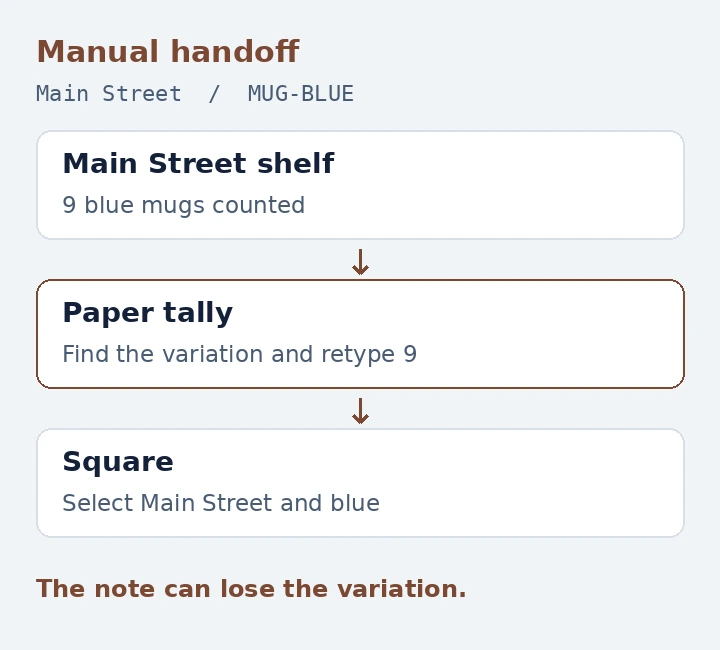
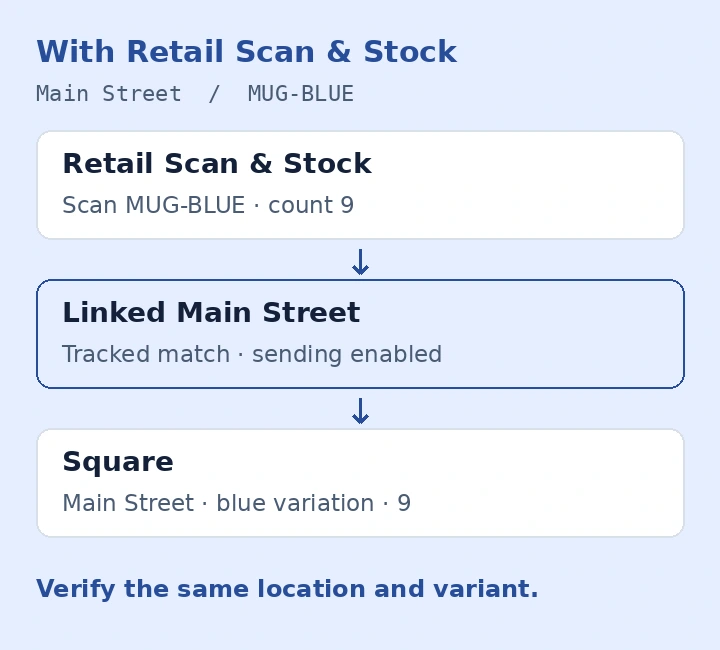
Main Street, blue mug (MUG-BLUE): counted 9, Square shows 12. Check the blue variation at Main Street in Square Dashboard. If sending is enabled for that location, send the completed count of 9 and check its inventory history for later sales. Connect on Business · Set up the connection



Finish the count where you started it
Square tracks stock by variation. Think about the two mugs as two stock records, even if they share a product name. On the shelf, make sure the barcode on the blue mug points to its own record. If blue and white share a code in your catalog, sort that out before you send a count for either one.
In this example the blue mug is MUG-BLUE. The closer records nine in Retail Scan & Stock (RSS) for Main Street. For a linked location with sending on, RSS can pass that completed count to Square once it has a tracked match for the blue variation. At opening, the next shift has a count with an item and a store to check.
Square already supports full and cycle counts on eligible plans. If your staff count directly in Square and are happy with that workflow, they already avoid the paper handoff. This example is for teams that do the floor count separately or want to keep the count in RSS with their other store records.
Link Main Street first
The RSS Business account owner sets up the connection in the web cabinet. Have someone with the necessary Square permissions authorize access. Before you start, check the blue mug in Square. Its variation should have inventory tracking enabled and a barcode or SKU that identifies the same product in RSS.
- Open POS integrations in the cabinet and select Connect Square. Approve access in Square and return in the same browser.
- On Confirm POS connection, check the merchant name. Under RSS store for Main Street, choose the Main Street store in RSS. Leave the other location unlinked if it is outside the pilot.
- If you want Square to receive completed counts from Main Street, turn on Send completed counts to Main Street, then select Confirm connection. Sending starts off on a new link. You can start with sales import, then use Enable and Save link when you are ready to test a stock update.
Check the blue variation after sending
On the phone, open Count and start a New Count session for Main Street. In Exact Count, scan the blue mug, count the units on the shelf and in the back room, and record the total once. Select Complete Session and let the app sync. Shelf counting can continue offline on a device already set up for the store. Sending the result to Square requires connectivity.

When the update has been sent, open the Item library in Square Dashboard. Select the blue variation and check the stock quantity for Main Street. In the example, you should see nine if nothing sold or moved in between. Square applies later inventory activity to the count, so compare timestamps and movements before deciding a different current quantity is an error.
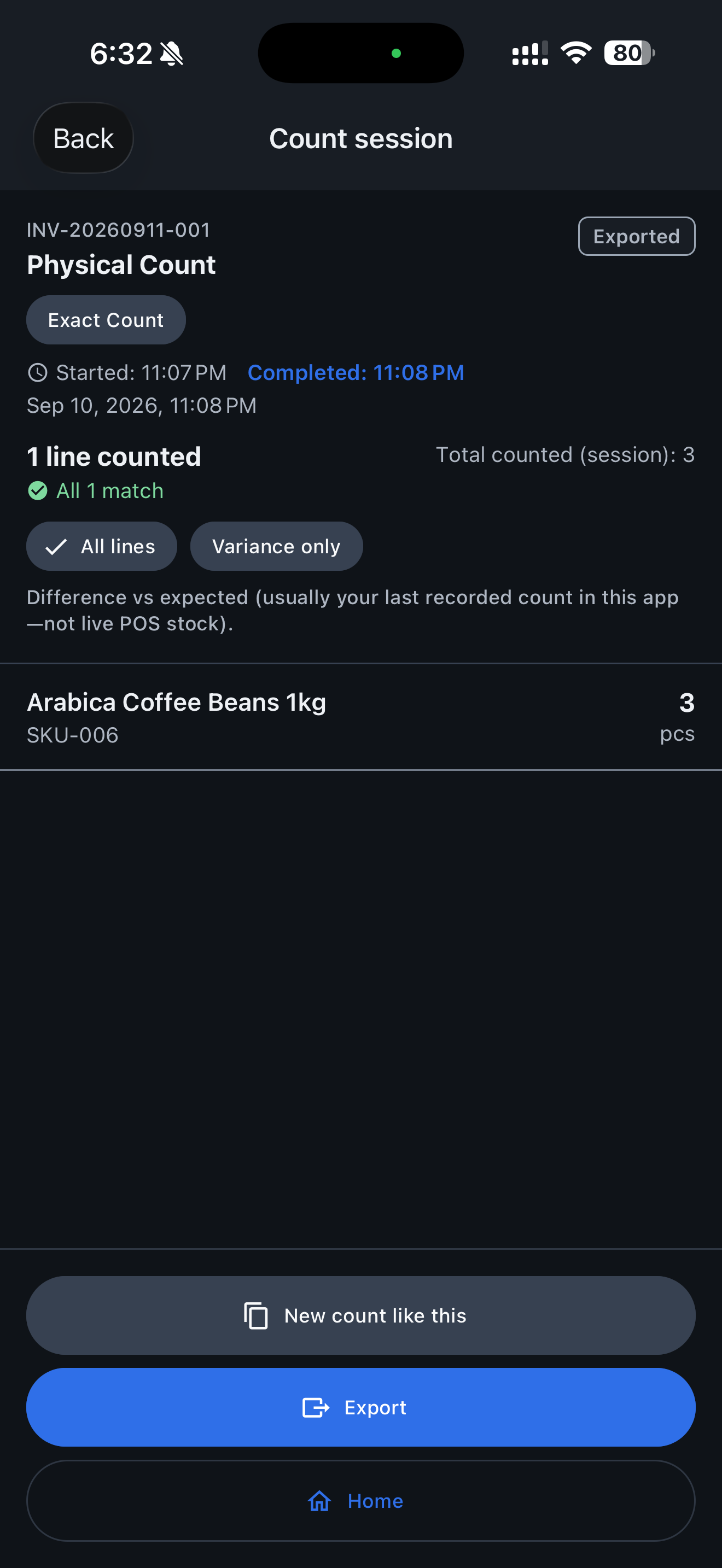
The cabinet’s Sales screen answers a different question: what sold at Main Street? Pick a qualifying completed order you can find in Square, then check the corresponding period’s document in RSS after import. It records units sold and returned. The nine mugs in the count session are still the nine the closer found. A location link queues the first import. If the sale has not appeared, check again after the next scheduled run.
If Square still shows twelve
Start with the barcode. A Square item can contain several variations, and a matching name on both screens tells you little. Check the blue variation’s barcode or SKU, whether tracking is enabled, and the location displayed in Square. A problem with the match is worth fixing before counting more products.
If the variation and location are right, check that sending is on and look in Count updates to review. A delayed or uncertain count can be held. Read the reason and check what sold since you counted before selecting Send to POS or Don’t send. When an older count is sent after review, Square can count sales since the original count again. If you cannot account for the movement, recount the item before sending a new number.
Run it on a shelf you usually count after closing. The next morning, ask someone who wasn’t there to find the blue mug count in Square. If they can verify the right variation and location without calling the person who counted, the handoff is working.
Test with one item at one store
In Square, open the exact item variation at the linked location. If the physical count was 9, check which transactions occurred before treating a later quantity as an error.
- Before counting, record the store, the SKU or barcode and the quantity shown in the POS. Save the time you checked it so you can account for later sales, returns or transfers.
- Finish the count in Retail Scan & Stock and wait for it to sync. If you enabled count sending, check the update status in the cabinet before comparing the quantity on the same item and at the same location in the POS.
- If the numbers differ, check the store link, item match and any pending review. Then look for movements since the count. If the discrepancy is still unexplained, count the item again before sending another update.