

Prepare products and start from a completed count
Give each product a minimum, target maximum, stock unit, order multiple and supplier. Open a completed count and choose the min/max order action, or start in Orders and select counts. Several selected documents must belong to the same store.
For a first run, choose a small set of familiar products. Missing settings, missing suppliers, conflicts and products needing no replenishment appear separately so you can resolve or exclude them. Opening the preview does not create orders.
Choose the correct count when products repeat
The default takes the latest selected count for each product. If count A contains X = 4 and Y = 8, and later count B contains X = 6, use X = 6 and Y = 8. The line’s count time matters, not when a document reached the device.
Explicit summing would produce X = 10. Use it only if the documents cover disjoint stock, such as shelf and backroom at the same store. Recounting the same shelf twice does not create twice the stock. Unselected products are not zero; newer known counts outside the selection require review.
| Counted | Minimum | Target | Order multiple | Order |
|---|---|---|---|---|
| 3 | 5 | 20 | 6 | 18 |
| 1 | 2 | 10 | 4 | 12 |
First row: product A for supplier A. Second row: product B for supplier B. Quantities are units of each product. On a plan with two suppliers, create two drafts; Free retains its one-supplier limit.
Review pack quantities and supplier groups
In the example below, two products have different assigned suppliers. Product A: count 3, minimum 5, target 20, multiple 6 gives order 18. Product B: count 1, minimum 2, target 10, multiple 4 gives order 12. Both need review because packs take the final stock above the target.
On a plan that supports both suppliers, the result is two ordinary purchase-order drafts, one for each supplier. Review counts, dates, sources and quantities; assign a missing supplier or keep an unassigned shopping draft. Changing a draft does not silently change the catalog.
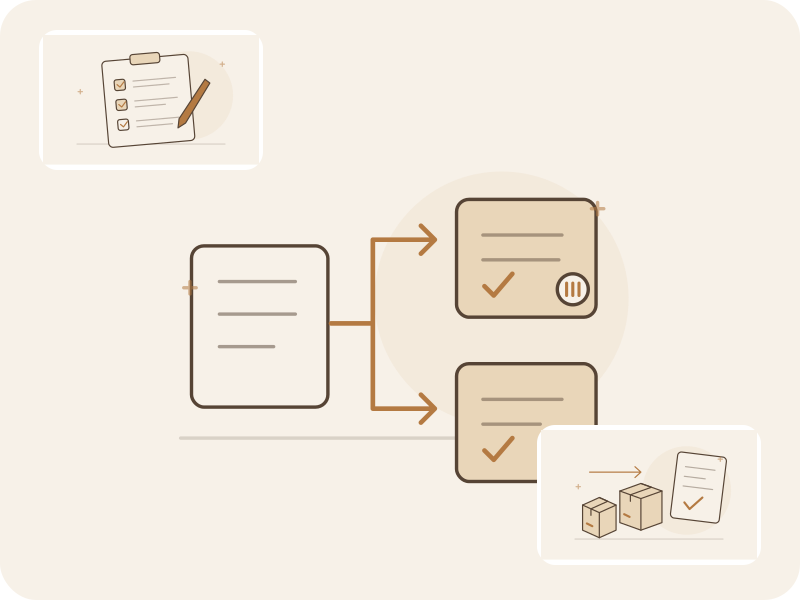
Select counts
Latest selected count per product, within one store.
Review proposal
Check packs, assigned suppliers and open-order warnings.
Create drafts
Separate supplier documents, ready for your next action.
Conceptual workflow, not an app screenshot. Export or send only after the normal review and approval steps.
Avoid duplicate orders and check what is already on order
Created drafts reserve their source count lines. Repeating creation shows the existing orders rather than creating copies; partially used counts can still supply unused lines. Reducing a quantity manually does not create a second order for the difference.
A new count does not mean an older purchase order has arrived. The preview warns about known open orders, quantities and receipt details, but does not subtract them automatically. Inspect the existing order, exclude or adjust the line, or explicitly confirm an additional order.
Set up and update the catalog through Excel
Export the whole catalog or the visible selection, fill in min/max, supplier and order-multiple fields, then import the changes. Store identifiers keep thresholds attached to the right store. Stable product identifiers support updates even without barcodes; barcode text preserves leading zeros.
The default updates filled fields: absent columns and blank cells leave existing values alone, while an allowed zero is written. Clearing requires an explicit choice. Preview changes and errors first. Importing catalog settings does not create counts, replace stock results or automatically add unknown products.
Create, synchronize and export the reviewed drafts
Check open-document capacity before creating the group. The app creates the selected drafts together; it does not silently create only part of the group. The orders keep the source count links and continue through the normal completion, approval, export and receiving workflow.
Free supports the complete offline scenario and Excel export within 1,000 products, 1 supplier, 5 open documents and 1 device. Multiple-supplier grouping needs a plan with those supplier slots. Teams can prepare offline, but must synchronize and resolve source conflicts before completion or export; offline drafts stay saved.
Common questions
Are the orders sent automatically?
No. The action creates drafts. You review them and use the existing completion, approval, export and sending steps.
Can I create orders for several suppliers on Free?
Free supports one supplier. The complete min/max workflow is available within that limit; several suppliers require a plan that allows them.
Does creating an order change the stock count?
No. The calculation and draft creation keep their sources; creating an order does not change the store’s counted stock.
Replace repeated quantity calculations with a reviewed proposal
Start with one supplier on Free. Count from your phone, review min/max quantities and export the purchase order without rebuilding its lines.
See the Free plan and limitsContinue the workflow
Sources and method
External reference for general min/max principles.
Oracle: min/max planning principles