


1. Prepare and choose a file
Use the first row for headers and one row per product. Choose a CSV or XLSX file up to 10 MB and 20,000 product rows. Save older .xls files as .xlsx first. For an XLSX workbook, select the sheet with your catalog.
Format the barcode column as Text before entering or pasting codes in Excel. For a CSV, use Excel’s Data → From Text/CSV and set the barcode column type to Text before loading. Opening a CSV directly can strip leading zeros. If zeros are already missing, restore the full codes from the original source.
| Product | SKU | Barcode |
|---|---|---|
| Oat biscuits | DEMO-1 | 0012345678905 |
| Mint tea | DEMO-2 | 0012345678912 |
| Tomato soup | DEMO-3 | 0012345678929 |
| Sparkling water | DEMO-4 | 0012345678936 |
| Rice crackers | DEMO-5 | 0012345678943 |
2. Match the columns
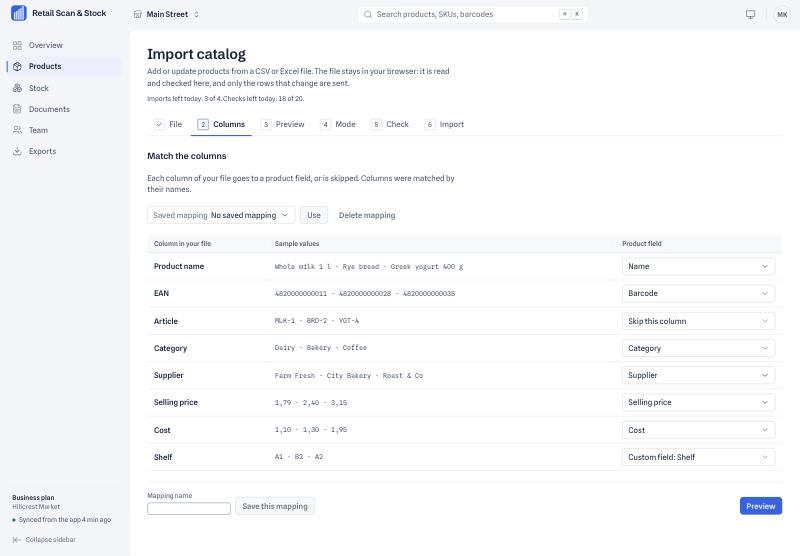
On Columns, review the suggested matches and sample values. In the example, map Product to Name, SKU to SKU and Barcode to Barcode. Every row needs a name. Skip columns you do not want to import, such as a quantity column.
3. Preview and fix a row
Preview shows up to the first 20 rows and flags problematic cells. If the name for DEMO-3 is blank, the preview flags it as required and excludes the row. Enter Tomato soup in the source file, save, select Choose another file and check the mapping and preview again. The downloads already include the correction.
4. Choose a mode and check changes
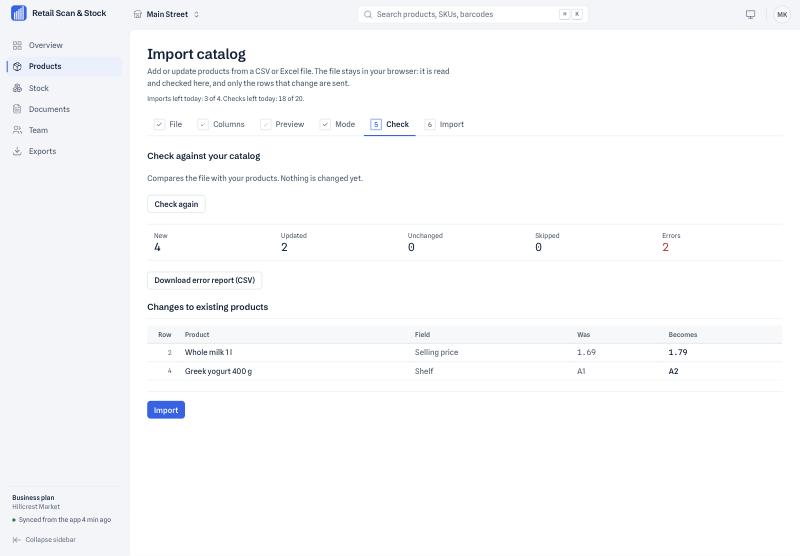
In Mode, choose Create new products only for this example. In Check, run Check the file. With none of these products already present, expect five new products and zero errors. Check shows new, updated, unchanged, skipped and error totals, plus before-and-after values for updates. Download the CSV error report if you need to fix more rows. The check saves no catalog changes.
5. Confirm the import
In Import, complete the human verification and choose Email me a code. Enter the six-digit code from the email you sign in with and select Start import. The code is valid for 10 minutes. When the import finishes, check the result for five created products and zero errors in this example.
6. Verify the catalog and count stock separately
Select Go to products. Search for DEMO-1, open it and verify the barcode is 0012345678905. Repeat for the other products. Team phones receive the catalog changes on their next sync.
The import loads product records such as names, SKUs and barcodes. To record quantities on hand, complete a physical stock count for the store in the mobile app. The catalog import leaves last-counted quantities and dates as they were.