

Quick answer
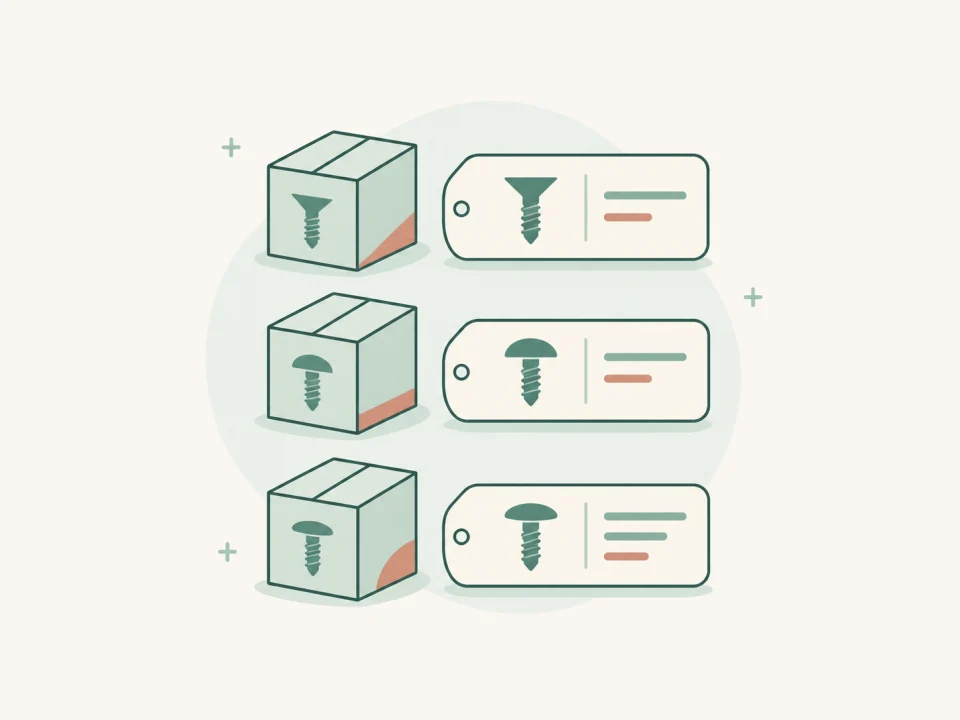
Use the same naming pattern for similar products and add a custom field only when it answers a question staff ask at the shelf or counter. Test the fields on three real records before changing the rest of the catalog.
The app steps below require Retail Scan & Stock 1.2.0 or later. Check the version offered on your device.
Separate core fields from shop-specific details
| Field group | Field | Example | What staff use it for |
|---|---|---|---|
| Core item field | Product name | Cabinet screw, 16 mm | Tell similar sizes apart at a glance. |
| Custom field | Finish (List) | Zinc plated | Give staff one consistent finish to quote at the counter. |
Add Finish as a List so everyone uses the same choices. Add Screws per box as a Number so staff can answer how many are in a sealed box. The available types are Text, Number, Date, Yes / No, and List. A field keeps its type after creation.
Free lets you work with core fields. For active custom fields, Store allows 3 and Multi-Store allows 10. Business has no active-field plan cap, with a system maximum of 200 definitions including archived fields.
Open More, then Business profile, then Custom fields. For a synced team, owners and managers define fields while staff can fill in editable values. Managing shared fields requires an internet connection.
Test on three products
A hardware shop has three similar boxes of cabinet screws. Open each record and enter the finish and pack size printed on its box. Ask a coworker to find the 20 mm zinc-plated box and tell you how many screws it holds.
| Product name | SKU | Finish | Screws per box |
|---|---|---|---|
| Cabinet screw, 16 mm | HW-016 | Zinc plated | 50 |
| Cabinet screw, 20 mm | HW-020 | Zinc plated | 50 |
| Cabinet screw, 25 mm | HW-025 | Black oxide | 25 |
For lookalike boxes, take a product photo that shows the finish and the size on the package. The photo stays on the device where you add it. Catalog exports, local app backups, and cloud sync leave out the photo.
Fix one category on two items
- In Catalog, touch and hold HW-016, then tap HW-020. Check that exactly those two records are selected.
- Tap More, choose Assign category, enter Zinc-plated screws, and tap Apply.
- Reopen both records to check the category. Use HW-025 as a control and check that it kept its original category.
Bulk actions require Store or higher. Owners, managers, and staff can assign a category or supplier and add or remove favorites. Owners and managers can also export selected items to Excel or CSV. Enter custom values on each product.
Check what travels with the catalog
Catalog exports include active custom fields as columns. In the Excel or CSV import wizard, map columns to existing editable fields and check the preview. A local app backup includes field definitions and values.
On a synced paid account, shared field definitions and their product values sync. Fields created only on a device stay there unless you explicitly copy them to the team.
Catalog cleanup checklist
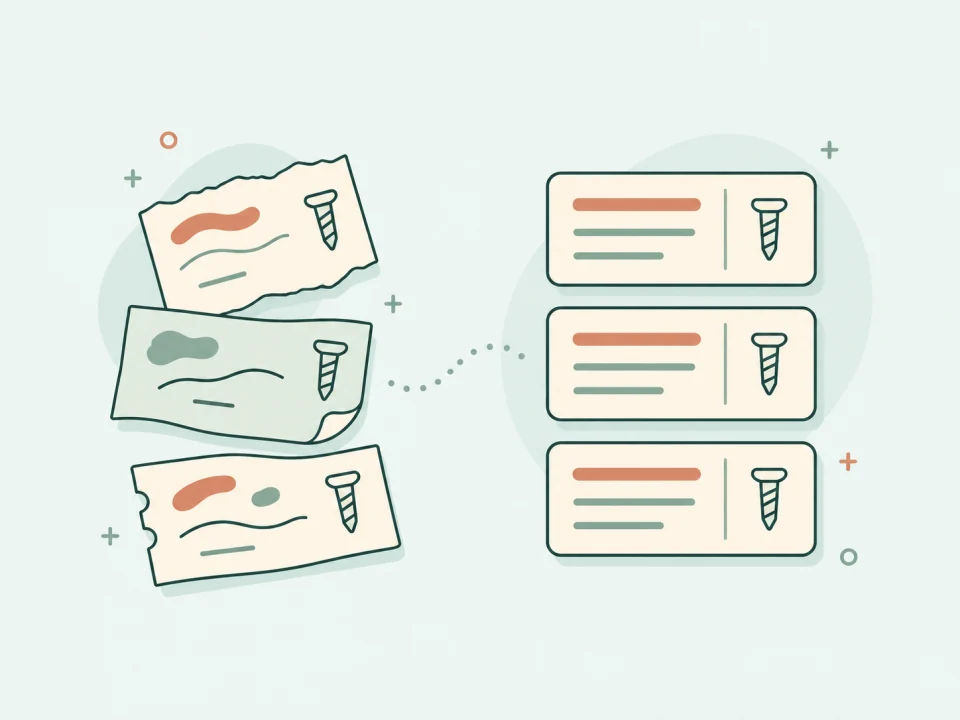
- Check for duplicate records before adding another item.
- Use one name for each finish and verify pack sizes against the box.
- Archive unused custom fields to hide them and keep their values.
Try this first in the app
Open one existing catalog item and make its name clear enough to identify the size on the shelf. Reopen it to check the result. With custom fields available, add Finish to the three pilot records next.