

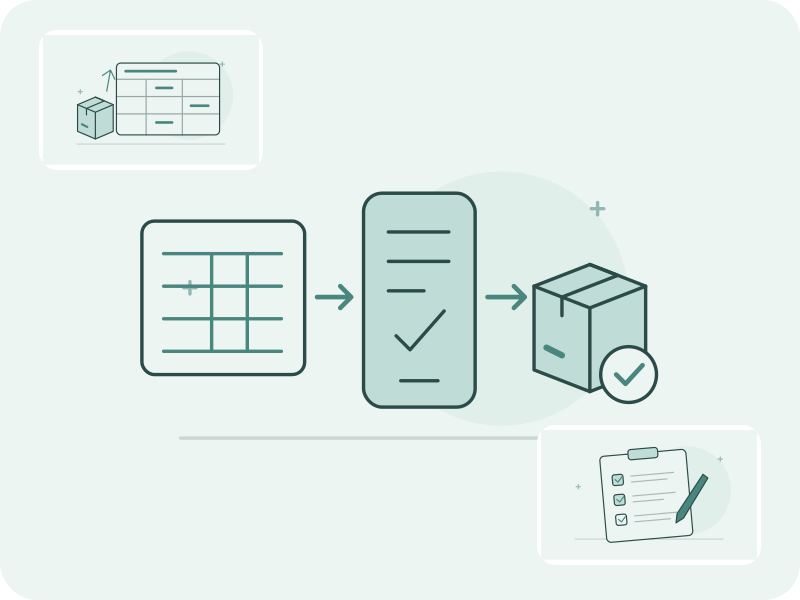
This guide covers the Switch from Sortly feature in mobile version 1.2.0. Before you begin, check that Catalog → Import shows that option in your installed app.
1. Export your inventory from Sortly
In Sortly, open Reports, then Inventory Summary. Check the filters and include the items and quantities for one destination store. Choose Export, select the spreadsheet option, continue with Next, and choose CSV or Excel (.xlsx). Select Export and save the file where your phone can open it. Keep the original as your reconciliation copy.
Sortly’s official inventory export instructions
| Entry Name | SID | Primary Folder | Barcode/QR2-Data | Quantity | Price | Cost |
|---|---|---|---|---|---|---|
| Paper Twine | DEMO-01 | Front shelf | 0000000123457 | 7 | 6.00 | 2.50 |
| Paper Twine | DEMO-01 | Back room | 0000000123457 | 3 | 6.00 | 2.50 |
| Paper Twine | DEMO-02 | Front shelf | 0000000123457 | 2 | 6.00 | 2.50 |
| Cotton Pouch | DEMO-03 | Front shelf | 0000000123464 | 4 | 4.00 | 1.60 |
These are selected columns. The first two rows show one item split between two folders. The third has a different Sortly ID but shares its barcode.
2. Open the mobile import and review the file
Switch to the writable destination store first. In the Retail Scan & Stock mobile app, open Catalog, choose Import, then Switch from Sortly. Pick the file and tap Check file. Compare the row and product totals and look at new items, existing matches, conflicts, split items, barcode merges and any issues before confirming.
In an empty catalog, these 4 rows should preview as 2 new products, 1 item split across folders and 1 barcode merge. The three rows for Paper Twine give one product and 12 units (7 + 3 + 2). Cotton Pouch gives one product and 4 units.
3. Tell the app what Price means
If the file has usable Price values, choose Selling price or Cost (what you pay the supplier) before importing. For Paper Twine, Selling price puts 6.00 in selling price and 2.50 in cost. With Cost selected, the separate Cost value of 2.50 takes priority and the result flags the unused 6.00. If there is no usable separate cost, Price becomes cost. This choice leaves selling price blank for new products and preserves it on updated products.
4. Check the store and opening count
For this example, the review should show Juniper Shop. Confirm the store shown in the review. Folder paths become product locations and never create stores. The opening count is on by default when the export includes a Quantity column. Turn it off for catalog only. Without that column, there is no opening count. Valid quantities for new and updated items go into one count named Opening balance from Sortly in the target store. A completed count sets stock at the time of import. A draft leaves stock unchanged. When the review matches what you expect, tap Import.
5. Reconcile the catalog and stock
The app matches existing items by barcode first, then by SKU. Keeping them as they are preserves their stock and leaves them out of the count. Updating can replace their stock when the opening count completes. Resolve reported conflicts before retrying. Open the result count and confirm the store, completion status, count time and each quantity against your saved file. In the example, scan the shared barcode to confirm there is one Paper Twine record with 12 units. Check the pouch for 4. Recount any discrepancy before using the new figures.
What transfers, what depends on your plan, and what stays in Sortly
Names, supported barcodes, units and the store’s minimums transfer. Recognized custom fields can fill cost, SKU, supplier, category, brand and barcode. Sortly notes, tags, IDs, other folder paths with quantities and remaining custom fields go into product notes. When updating, the app keeps existing notes.
Your plan can limit how many new SKUs fit. Check the result for skipped products, which are excluded from the count. On Free, suppliers above the plan’s allowance can be imported as locked entries.
User accounts, alerts and calculated inventory value also stay out of the import. Keep photos, photo links, Sortly-only QR labels, transaction history and original records in your Sortly archive. The web cabinet has a separate CSV or Excel catalog import for owners and managers on paid plans. Use the mobile Sortly flow described here to bring over opening stock.