

1. Move the review to the desk, not the counting
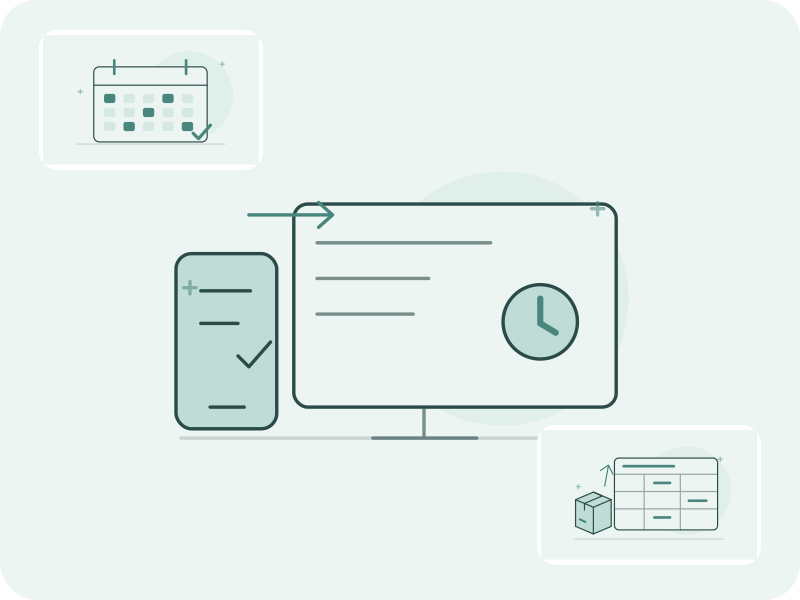
A small shop owner might count the drinks fridge on a phone before opening, then check the result on a laptop after the first rush. There is no need to type that count into another inventory system just to read it on a bigger screen.
In Retail Scan & Stock, the owner signs into the web cabinet with the same account using a one-time email code. The cabinet is included in Store, Multi-Store and Business without an extra charge. Managers and staff continue to use the mobile app; browser access is for the account owner.
2. Check the store and count time before the number
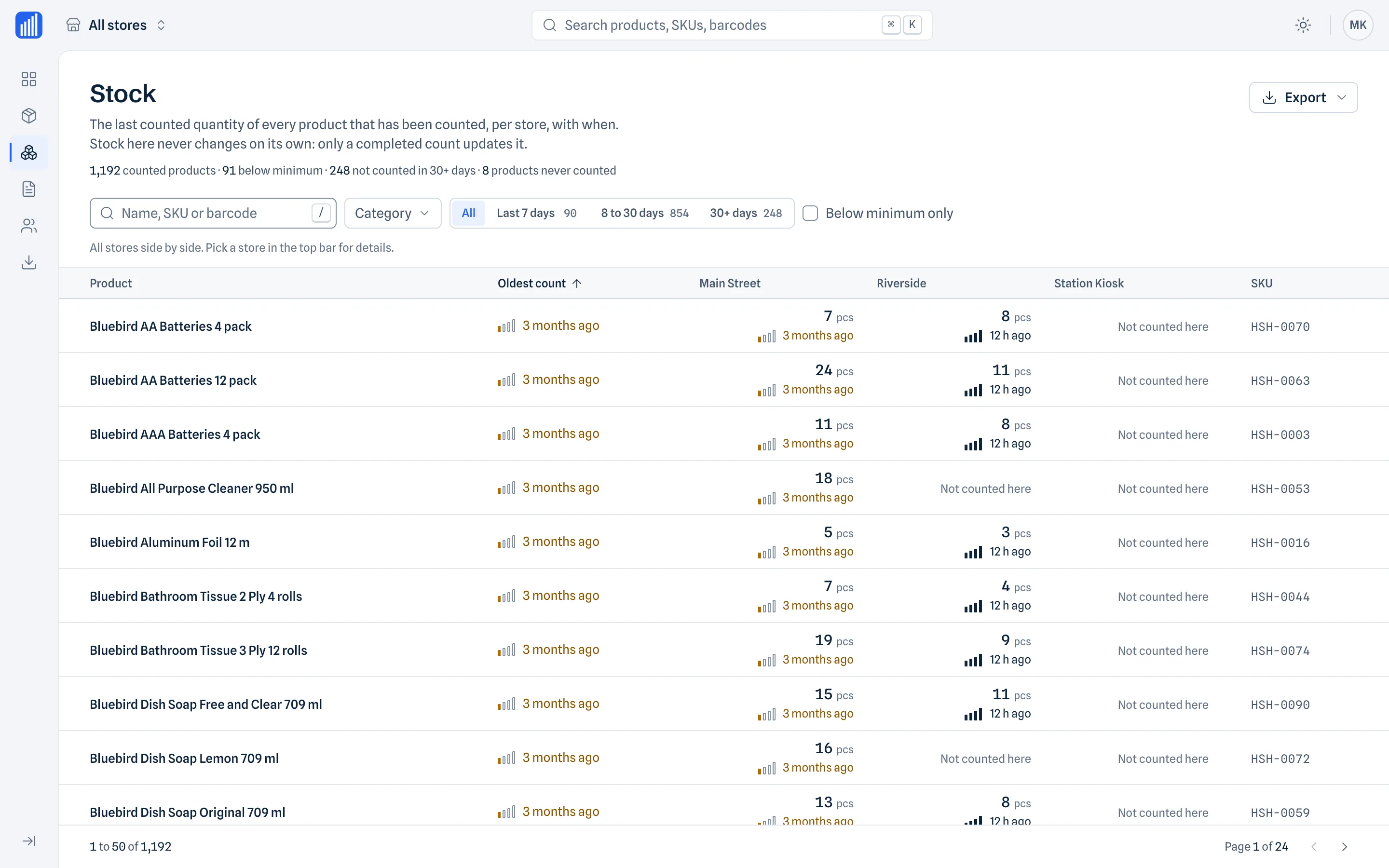
Start with the store, then read the last-counted quantity and its timestamp together. A count of 12 from this morning and a count of 12 from last week are different evidence, even though the number matches. Sales or other activity since the count can make either record unsuitable for today's decision.
For example, imagine two shops show the same item. One was counted today and the other six days ago. Ask for a fresh count at the second shop before planning replenishment. The cabinet does not turn either figure into a real-time balance or automatically establish what is on the shelf now.
| Record | What it tells you | Next step |
|---|---|---|
| Shop A: 12 units, counted today | A recent physical observation at Shop A | Check activity since the count before using it |
| Shop B: 12 units, counted six days ago | An older observation at Shop B | Request a fresh count before replenishment |
| A spreadsheet containing both rows | Two dated observations, not live balances | Keep the store and count date with each row |
Illustrative scenario, not a customer result or a claim about the current quantity in either shop.
3. Give each review a clear next action
For a weekly review, select one store, check the age of the relevant counts, then open the count document when a line needs explanation. Keep a short list of questions: which item, which store, which document, and whether a fresh count is needed. Make any correction in the mobile app.
This also helps an owner who visits several locations. Review the records before travelling and use the visit to resolve specific questions. Comparing dated counts can guide where to look next; it does not prove shrinkage, sales or staff performance on its own.
Count on the phone
Record the physical count in the mobile app and sync the account records.
Read on the computer
Choose the store, inspect the count time and review the document.
Act on the evidence
Export the records or request a fresh count. Make changes in the mobile app.
Workflow sketch. The browser is the review and export step, not a second editor or a live stock engine.
4. Export once the review has a purpose
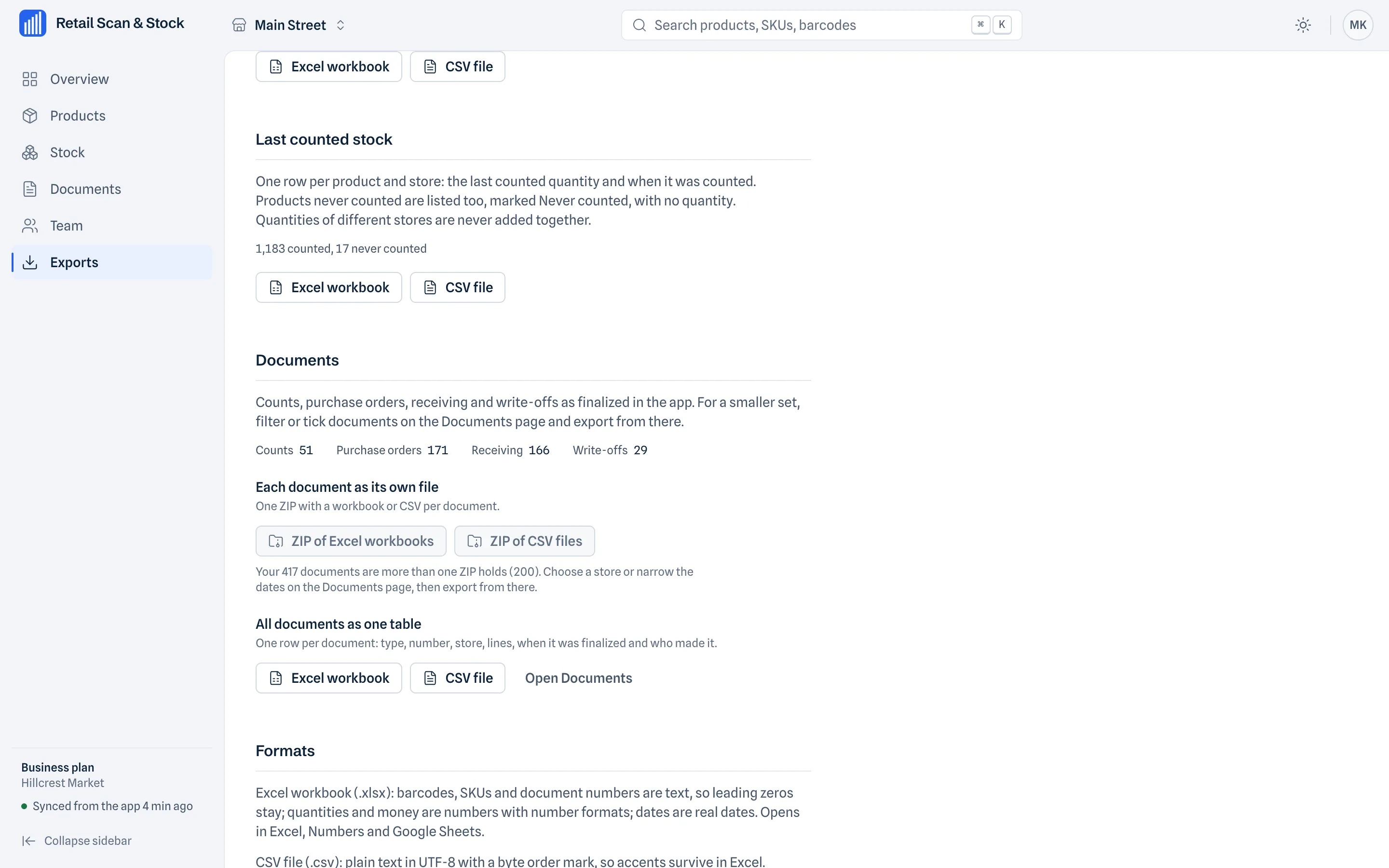
Use XLSX for spreadsheet work or CSV when another workflow expects a flat table. Export several documents as a ZIP when you need to pass a set of records to a bookkeeper or keep the review files together. Share the relevant exported files rather than giving someone your account login.
Keep the store, document reference and count date with the file. If a colleague builds a comparison spreadsheet, label each observation with its date instead of presenting it as current stock. A product catalog file can go back into the mobile app; importing or editing inside the web cabinet is not part of this workflow.
Common questions
Can I edit an inventory count from the browser?
No. The cabinet is read only. Create and change products and documents in the mobile app.
Does the stock page show a live balance?
No. It shows the last counted quantity and when it was counted for the selected store.
Can my bookkeeper log into my cabinet?
Cabinet access is for the account owner on Store, Multi-Store or Business. You can share relevant exported files instead of sharing your login.
Give your phone counts a desk view
Explore the read-only web cabinet for account owners on Store, Multi-Store and Business. Mobile work stays on the phone; review and exports move to your computer.
See the web cabinetContinue the workflow
What the examples are based on
Product capabilities follow the Retail Scan & Stock web cabinet page. Screenshots use invented demonstration data. The review scenarios are instructional examples, not measured customer outcomes.
Explore the web cabinet and its screenshots