

1. Compare an order with its linked receipts
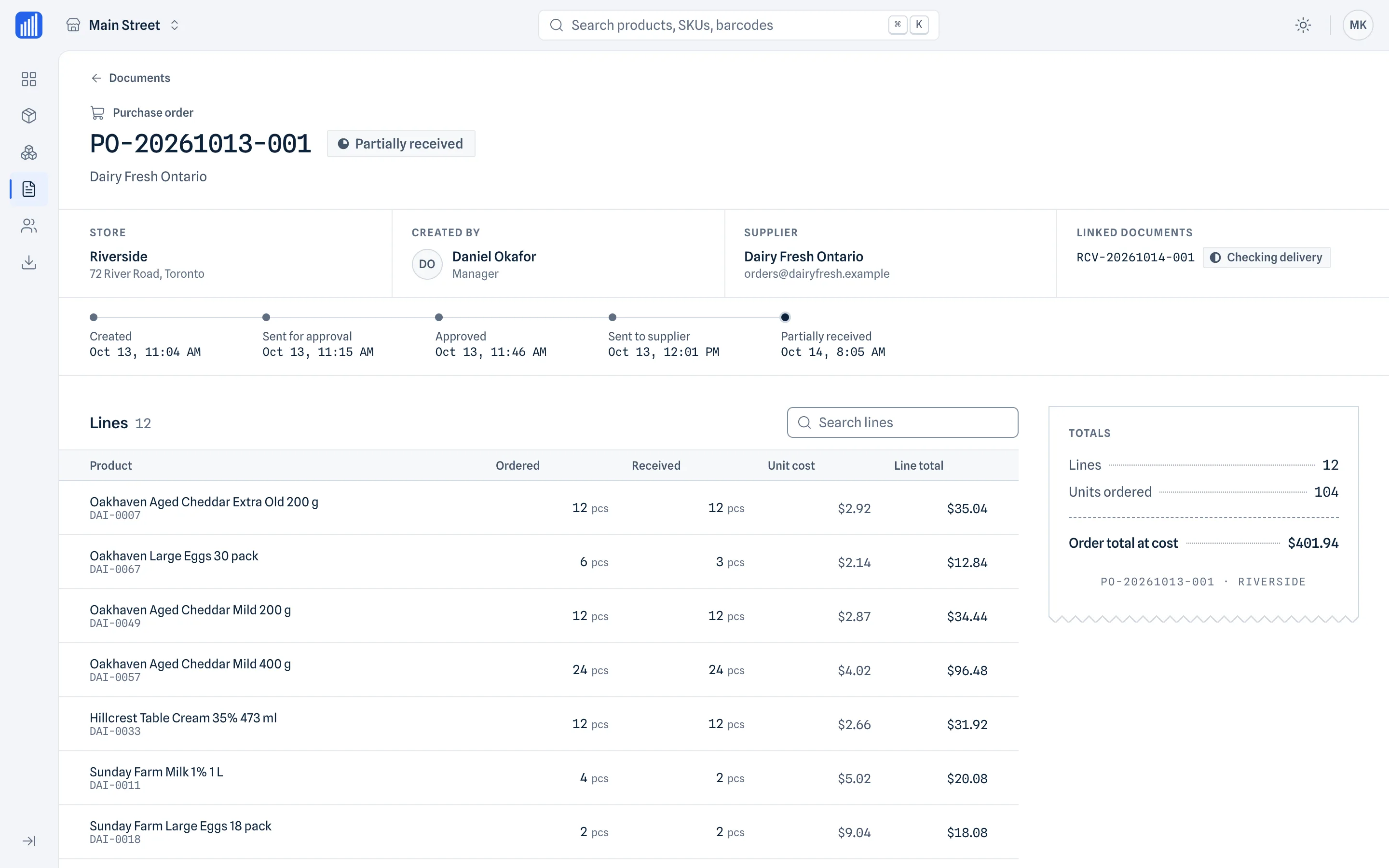
An owner can open a purchase order in the web cabinet and inspect its lines and linked receiving documents. A larger screen is useful when comparing item names and quantities before contacting a supplier. Keep the order reference in the conversation so both sides discuss the same delivery.
Suppose an order contains 24 units and its first linked receipt records 18. That leaves a difference of 6 between those two records. Check whether another receipt exists or the delivery was split before treating the difference as a shortage. The cabinet supports review; create or correct the underlying documents in the mobile app.
2. Read a write-off as a separate event
A later write-off of 2 damaged units answers a different question from the delivery comparison. It does not change the fact that the first receipt recorded 18 against an order of 24. Review the write-off document and its lines separately rather than silently netting the quantities together.
Do not label 18 minus 2 as the current stock. There may have been sales, another count or other activity. In Retail Scan & Stock, stock figures are last-counted quantities with a count time; receiving and write-off documents do not automatically become a continuously updated stock balance.
| Document | Example quantity | Question to resolve |
|---|---|---|
| Purchase order | 24 units requested | What was agreed with the supplier? |
| First linked receipt | 18 units recorded as received | Are the other 6 on another receipt or delivery? |
| Separate write-off | 2 units recorded as damaged | What does the loss document record? |
| Current shelf stock | Not established by these three figures | Check the latest count and its time; recount if needed |
Illustrative numbers, not a customer case. Do not turn this document comparison into a current stock calculation.
3. Use the browser for focused owner checks
After a busy delivery day, review orders with a question still open: which supplier, which item, which ordered quantity, and which linked receipt needs checking? Then use the mobile app for the next operational step. The browser does not send orders, approve documents or edit lines.
For a month-end handoff, collect the relevant order, receiving and write-off records before exporting them. For several stores, confirm the store context before comparing documents. A list of team members can help you understand the account, but managers and staff do not receive cabinet access through this workflow.
Purchase order
What was requested from the supplier? Read the lines and reference.
Linked receipt
What did this delivery record? Check other receipts before explaining a difference.
Write-off review
What loss was documented separately? Export the relevant records for follow-up.
Conceptual review sketch. A write-off is not shown as an automatically linked receipt or as a live stock calculation.
4. Export a useful set, then close the question
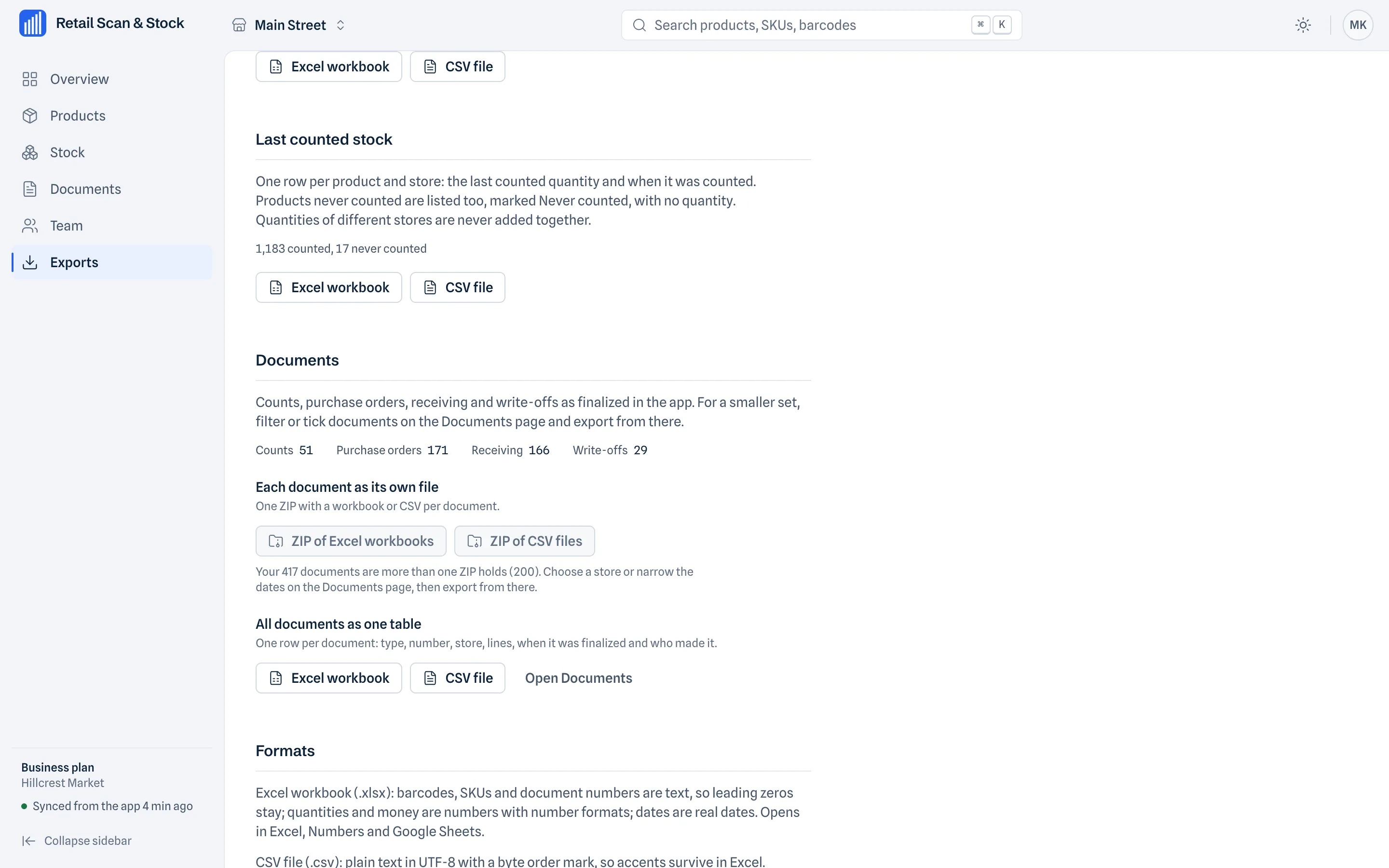
Export individual records as XLSX or CSV for detailed review, or package several documents in a ZIP. Give the recipient the document references and the question you want answered. A short note such as 'check the remaining 6 units on this order' is more useful than an unexplained folder of files.
The cabinet is included for account owners on Store, Multi-Store and Business, with no separate cabinet charge. Sign in with the same account and a one-time email code. Its interface supports 31 languages. It remains a read-only companion: changes and catalog imports take place in the mobile app.
Common questions
Can I create or send a purchase order in the cabinet?
No. The cabinet is for viewing and exporting. Create and change documents in the mobile app.
Will a receipt or write-off update the browser stock balance?
The stock view shows the last physical count and its time, not a real-time running balance derived from every document.
Can I export several documents together?
Yes. The cabinet supports XLSX, CSV and exporting several documents in a ZIP. Choose the records needed for your review.
Read the whole document on a larger screen
See how the web cabinet helps an account owner review mobile documents and export records. Included in Store, Multi-Store and Business.
Explore the web cabinetContinue the workflow
What the examples are based on
Product capabilities follow the Retail Scan & Stock web cabinet page. Screenshots use invented demonstration data. The quantities and scenarios illustrate a review method; they are not customer results or automatic accounting features.
Explore the web cabinet and its screenshots